
WTF is DNS ?
You've probably heard this sentence many times:
"DNS is the phonebook of the World Wide Web."
And yes, that analogy is correct.
But have you ever wondered what actually happens behind the scenes when you type a domain like google.com into your browser?
How does your browser find the correct IP address?
How do DNS servers communicate with each other?
What role do Root Servers, TLD Servers, and Authoritative Servers play?
If these questions have ever crossed your mind, you're in the right place.
Let's dive deep into DNS and understand the complete journey from a domain name to an IP address.
What is DNS?
DNS stands for Domain Name System.
It is a distributed system that translates human-readable domain names into machine-readable IP addresses.
For example:
google.com  →  142.250.193.78
github.com  →  140.82.121.4
youtube.com →  142.250.182.206
Computers communicate using IP addresses, while humans prefer easy-to-remember names.
Imagine trying to remember dozens of IP addresses every day:
142.250.193.78
140.82.121.4
151.101.1.194
instead of:
google.com
github.com
stackoverflow.com
That's exactly the problem DNS solves.
DNS acts as a giant directory that maps domain names to IP addresses.
Without DNS, browsing the internet would be extremely inconvenient.
The Problem DNS Solves
Suppose you want to visit Google.
You open your browser and type:
google.com
Your browser cannot directly connect to Google using the name google.com.
It first needs Google's actual IP address.
So the browser asks:
"Who knows the IP address of google.com?"
The answer is DNS.
What is a DNS Resolver?
A DNS Resolver is a server responsible for finding the IP address associated with a domain name.
Think of it as your personal assistant.
Whenever you enter a website address, the browser sends the request to the DNS Resolver and says:
"Please find the IP address of this domain."
The browser doesn't care how the resolver finds the answer.
It simply waits for the final IP address.
Some popular public DNS Resolvers include:
- Google DNS (
8.8.8.8) - Cloudflare DNS (
1.1.1.1) - OpenDNS
The resolver does all the hard work behind the scenes.
Before Contacting DNS Servers: Cache Check
DNS lookups happen billions of times every day.
To avoid unnecessary requests, systems use caching.
Before performing a complete lookup, the browser checks several caches.
1. Browser Cache
The browser checks if it already knows the IP address.
Example:
You visited google.com a few minutes ago.
The browser may already have Google's IP stored.
No DNS lookup is needed.
2. Operating System Cache
If the browser cache misses, the operating system checks its own DNS cache.
Windows, Linux, and macOS all maintain DNS caches.
3. Router Cache
Your Wi-Fi router may also have previously resolved DNS records stored.
If another device recently visited the same website, the router might already know the answer.
If all caches fail, the DNS Resolver starts searching.
DNS Hierarchy
DNS follows a hierarchical structure.
                    .
                 Root
                   |
       -------------------------
       |           |           |
      .com        .org        .net
       |
    google.com
       |
 Authoritative DNS
The hierarchy contains three important types of DNS servers:
- Root Servers
- TLD Servers
- Authoritative Servers
Each server has a specific responsibility.
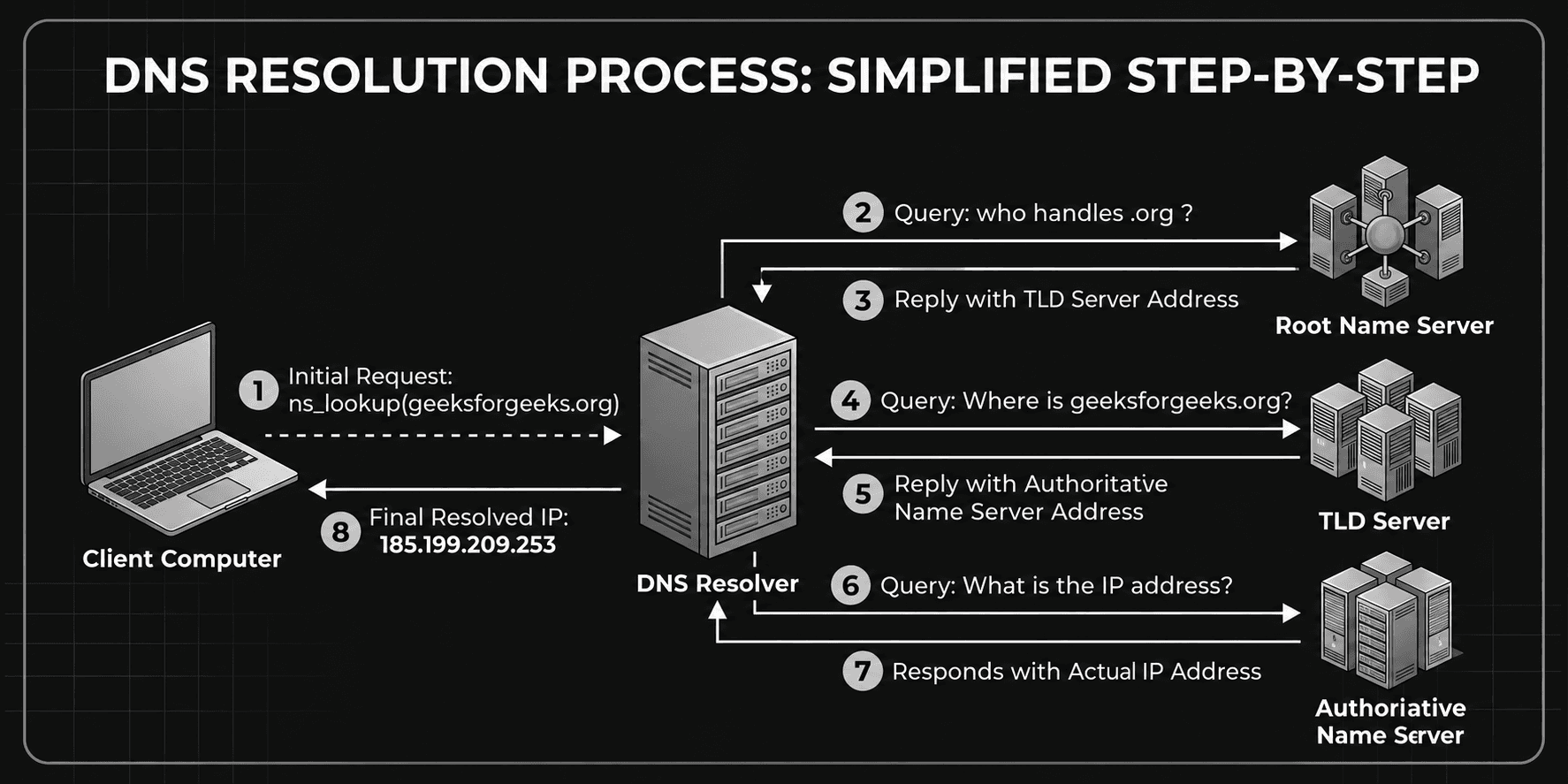
Figure 1 - DNS Resolution Process
Root Name Servers
Root Servers sit at the top of the DNS hierarchy.
They do not know the IP address of every website on the internet.
Instead, they know where the Top-Level Domain (TLD) servers are located.
When the resolver asks:
"Where can I find information about google.com?"
The Root Server replies:
"I don't know Google's IP address, but I know who manages .com domains."
The resolver is then directed to the appropriate TLD server.
Did You Know?
There are only 13 logical Root Server names (A–M) in the world.
However, each logical server is backed by hundreds of physical servers distributed globally using a routing technique called Anycast.
TLD Name Servers
TLD stands for Top-Level Domain.
Examples include:
.com
.org
.net
.edu
.in
The resolver now asks the .com TLD server:
"Where can I find information about google.com?"
The TLD server responds:
"I don't know Google's IP address, but I know which Authoritative Server manages google.com."
The resolver is then directed to the Authoritative Server.
Authoritative Name Servers
This is the final destination of the DNS lookup process.
Authoritative Servers store the actual DNS records for a domain.
The resolver asks:
"What is the IP address of google.com?"
The Authoritative Server responds with:
google.com → 142.250.193.78
The resolver finally gets the answer.
Complete DNS Resolution Example
Let's see the complete process using a real-world example.
Suppose you type:
github.com
into your browser.
Step 1
Browser checks local caches.
No result found.
Step 2
Request goes to the DNS Resolver.
Step 3
Resolver asks the Root Server:
"Where can I find github.com?"
Root Server replies:
"Ask the .com TLD Server."
Step 4
Resolver asks the .com TLD Server:
"Where can I find github.com?"
TLD replies:
"Ask GitHub's Authoritative Server."
Step 5
Resolver asks GitHub's Authoritative Server:
"What is the IP address of github.com?"
Authoritative Server replies:
140.82.121.4
Step 6
Resolver returns the IP address to the browser.
Step 7
Browser can now connect to GitHub's server.
What Happens After DNS Resolution?
Many beginners think the story ends once the browser gets the IP address.
Not quite.
DNS resolution is only the first step.
After receiving the IP address, the browser performs:
Domain Name
      ↓
DNS Resolution
      ↓
IP Address Found
      ↓
TCP Connection
      ↓
TLS Handshake (HTTPS)
      ↓
HTTP Request
      ↓
Server Response
      ↓
Website Rendered
DNS helps locate the server.
The actual webpage is fetched afterward using HTTP or HTTPS.
DNS Records
DNS stores different types of records.
Let's look at the most common ones.
A Record
Maps a domain to an IPv4 address.
google.com → 142.250.193.78
AAAA Record
Maps a domain to an IPv6 address.
google.com → 2404:6800:4007:80a::200e
CNAME Record
Creates an alias for another domain.
blog.example.com
        ↓
example.com
MX Record
Used for email routing.
gmail.com → Mail Servers
DNS Caching and TTL
Caching makes DNS extremely fast.
But how long should a DNS record stay in cache?
That's where TTL comes in.
TTL stands for:
Time To Live
Example:
TTL = 3600
This means the DNS record can remain cached for 3600 seconds (1 hour).
Once the TTL expires, a fresh lookup is performed.
This is why DNS changes don't always become visible immediately.
Why DNS Is So Fast
DNS handles billions of requests every day.
Yet most DNS lookups finish in milliseconds.
This is possible because of:
- Browser caching
- Operating system caching
- Router caching
- Resolver caching
- Globally distributed DNS servers
- Anycast routing
Together, these optimizations make DNS incredibly efficient.
Final Thoughts
Every time you type a domain name into your browser, an entire chain of systems works together in milliseconds.
Caches are checked.
Resolvers search.
Root Servers provide directions.
TLD Servers identify the correct domain owner.
Authoritative Servers return the final answer.
Only then can your browser connect to the website and fetch its content.
DNS is one of the most important systems on the internet, yet most users never notice it working in the background.
The next time you type google.com into your browser, you'll know exactly what happens behind the scenes.